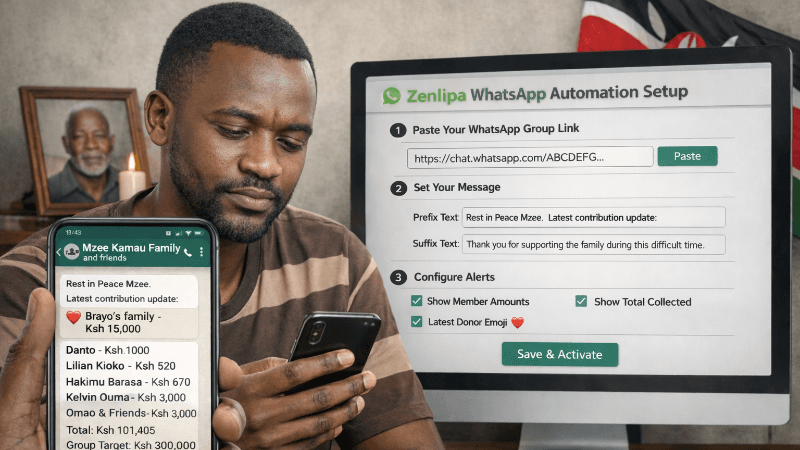
How to Automate Your WhatsApp Contribution Lists with Zenlipa
morrisonmburu7
Feb 12, 2026
4 min read
When organizing a funeral to give a loved one a dignified send-off, a WhatsApp group often serves as the central hub of the entire effort. Whether it’s a small committee coordinating logistics or a large group of friends and family chipping in, keeping everyone updated on contributions is vital.
Manual updates are slow and prone to error, which can dampen the momentum of your cause. By linking your Zenlipa fundraising link directly to your WhatsApp group, you ensure every contribution is celebrated instantly, maintaining transparency and encouraging others to give. Here is how to set up this seamless integration.
Step 1: Copy Your WhatsApp Group Link
Before you start the automation, you need to tell the Zenlipa bot (ZenBot) where to send the updates.
-
Open your WhatsApp group and tap the Group Name.
-
Scroll down to Invite via link.
-
Select Copy link.
Step 2: Configure the Zenlipa WhatsApp Bot
Once your fundraising campaign is live on Zenlipa, navigate to your dashboard to sync it with your group.
-
On your campaign dashboard, click the button labeled Update Whatsapp Bot.
-
Paste the Link: In the first field, paste the WhatsApp group invite link you just copied.
-
Add Prefix Text: Write a message that will appear at the very top of every update (e.g., "Paying our last respects, Latest contribution update:").
-
Add Suffix Text: This appears at the bottom of the list and is ideal for instructions or words of gratitude (e.g., "Thank you for supporting the family. Click on below to contribute.").
Step 3: Use Gamification to Drive Contributions
To keep the group engaged, Zenlipa offers a Latest Contributor Indicator.
-
The Incentive: Choose a creative emoji (like ❤️, 💎, or 🫶) to appear next to the person who just donated.
-
The Impact: This acts as a visual "shout-out," creating a sense of momentum. People are more likely to give when they see the list actively moving and want to see their name highlighted.
Step 4: Customize Your Visibility Toggles
You have full control over what information is shared. You can toggle these options on or off at any time:
-
Show amount contributed by each member: Displays the specific amount next to each name for full transparency.
-
Show total amount contributed by all members: Keeps the group focused on the final goal.
-
Pause bot from sending messages: Useful if you want to temporarily stop updates during a sensitive discussion or late at night.
Step 5: Save and Activate
Click Save Changes at the bottom of the page. Finally, ensure you accept the Zenlipa invite within your WhatsApp group. The bot will join as a participant and begin streaming real-time updates as contributions come in.
Handling Multiple Donation Categories
In a typical Kenyan funeral setup, different groups often contribute toward different targets. Zenlipa allows you to create multiple donation categories within one link and link each to a specific WhatsApp group.
For example, you can set up:
-
Family Group: Updates only family contributions.
-
College Alumni Group: Specifically for former classmates.
-
Work Colleagues Group: Tracks the "office" contribution target.
-
Church/Diaspora Groups: Dedicated streams for those specific communities.
The ZenBot is smart enough to send the contribution update only to the relevant group based on the category the donor selects. This keeps your groups organized and ensures that your work colleagues aren't flooded with family-specific updates.
Share this post: